By Luck Ian • 17 March 2026
How to Extract Text from an Image on iPhone and Android
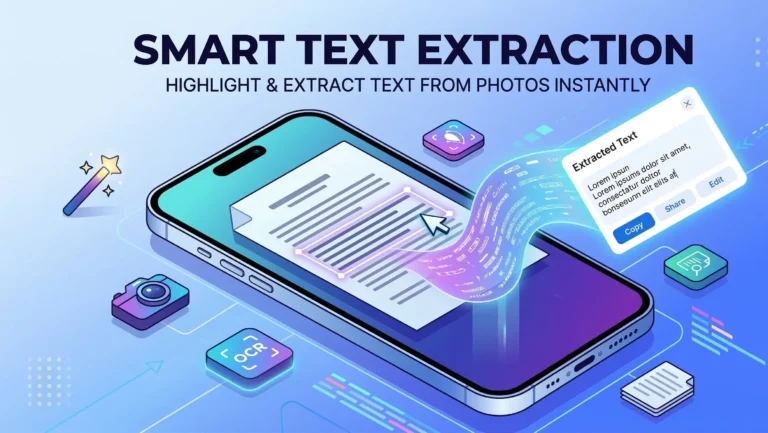
You have taken a photo of a whiteboard after a meeting, snapped a picture of a page from a textbook,…
Read Article →
Supports JPG, PNG, GIF, BMP, TIFF, WebP, SVG, PDF
You can also paste screenshots with Ctrl+V
Upload up to 5 images at once (max 10MB each)
Initializing OCR engine...
Copied to clipboard!
Extract text from any image, screenshot, or scanned document in seconds. Our AI-powered OCR tool converts JPG, PNG, PDF, and 6 other image formats into editable, copyable text. No signup needed, no hidden limits, and your files are automatically deleted after processing.
Converting an image to text takes three simple steps. The whole process usually finishes in under 5 seconds.
Click the upload area above, drag and drop your file, or press Ctrl+V to paste a screenshot directly from your clipboard. You can upload up to 5 images at once for batch processing.
Our AI-powered OCR engine scans your image, detects all text regions, and extracts the content. This works with printed text, handwritten notes, receipts, documents, and even text on photographs.
Once extraction is complete, your text appears in the output box. Click "Copy to Clipboard" to paste it anywhere, or hit "Download as TXT" to save it as a text file.
Working with a specific format? Try our dedicated tools: JPG to Text Converter, PNG to Text Converter, or PDF to Text Converter for optimised results.
An image to text converter is a tool that uses Optical Character Recognition (OCR) technology to detect and extract text from images, photos, screenshots, and scanned documents. Instead of manually typing out the text you see in a picture, the tool reads the image, identifies letters, words, and paragraphs, and gives you editable digital text you can copy, edit, and use anywhere.
OCR technology has been around for decades, but modern AI-powered OCR is far more accurate than older systems. It can handle messy handwriting, curved text on product labels, low-contrast images, and even text overlaid on complex backgrounds. The best OCR tools today achieve over 98% accuracy on clear, printed text.
Our free image to text converter uses advanced AI processing to deliver high accuracy across all common image formats. Whether you need to extract text from a photo of a whiteboard, a screenshot of a website, or a picture of handwritten notes, the tool handles it all.
Here is what makes our tool stand out from other OCR converters online:
We use advanced artificial intelligence for text recognition, not just basic Tesseract OCR. This means better accuracy with handwriting, low-quality images, and complex layouts. Tables, columns, and mixed-format documents are handled correctly.

Upload up to 5 images at once and extract text from all of them in a single session. Ideal for students processing lecture slides, researchers working through scanned papers, or anyone dealing with multiple screenshots.
Upload images the way that suits you best. Click to browse your files, drag and drop images directly onto the tool, or press Ctrl+V to paste a screenshot straight from your clipboard.
Our tool works with JPG, JPEG, PNG, GIF, BMP, TIFF, WEBP, SVG, and PDF files. Need a specific format converter? See our dedicated JPG to Text, PNG to Text, and PDF to Text pages.
Extract text in English, Hindi, Spanish, French, Arabic, Chinese, Japanese, Korean, German, Portuguese, Russian, and over 40 additional languages. The OCR engine automatically detects the language.
Once your text is extracted, copy it to your clipboard with a single click or download it as a plain text (.txt) file. The extracted text preserves the original line breaks and paragraph structure.

Your uploaded images are processed entirely in your browser and never leave your device. We do not store, share, or use your images for any other purpose. No account is required, and no personal data is collected.

There are no daily usage caps, no watermarks on extracted text, and no signup required. Use the tool as many times as you need. It is free for personal use, academic work, and professional tasks.
OCR tools are used by millions of people across different fields every day. Here are some of the most common use cases:
Extract text from lecture slides, textbook pages, handwritten notes, and research papers. Instead of retyping paragraphs from a scanned PDF or a photo of a whiteboard, paste the image into our tool and get editable text in seconds.
Digitise printed contracts, invoices, business cards, and meeting notes. OCR text extraction saves hours of manual data entry when processing documents that only exist as scans or photos.
Pull quotes, captions, and text from images for blog posts, social media content, and articles. Extract text from infographics, screenshots, or book pages instantly instead of typing by hand.
Extract error messages, log outputs, and code snippets from screenshots shared in bug reports or chat messages. This is faster than asking colleagues to paste the text separately.
Digitise historical documents, old manuscripts, and scanned archives. Our handwriting to text converter is particularly useful for processing handwritten letters, diaries, and forms.
Our image to text converter supports all major image and document formats:
| Format | Extension | Best For |
|---|---|---|
| JPEG / JPG | .jpg, .jpeg | Photos, camera images, scanned documents. Most common format. |
| PNG | .png | Screenshots, digital graphics, text on transparent backgrounds. |
| Scanned documents, forms, multi-page files. | ||
| GIF | .gif | Simple graphics and diagrams with text. |
| BMP | .bmp | Uncompressed images. Large files but no quality loss. |
| TIFF | .tiff | High-quality scans, archival documents, professional photography. |
| WebP | .webp | Modern web images. Smaller file size than JPG/PNG. |
| SVG | .svg | Vector graphics with embedded text elements. |
For best results with a specific format, use our dedicated converter pages: JPG to Text, PNG to Text, or PDF to Text. Each page is optimised for that specific format.
Our OCR engine recognises text in over 50 languages. The language is detected automatically from the image content, so you do not need to select it manually.
If your language is not listed here, try uploading your image anyway. The OCR engine supports additional languages and scripts that may not be listed above.
Understanding how OCR works helps you get better results from the tool. Here is what happens when you upload an image:
The system adjusts brightness, contrast, and sharpness to make the text more readable. Skewed images are automatically straightened, and noise is reduced.
The AI identifies where text appears in the image. It distinguishes text from graphics, photos, and background elements.
Each detected text region is processed character by character. The AI compares each shape against its trained knowledge of letters, numbers, and symbols.
The recognised characters are assembled into words, sentences, and paragraphs. Spelling correction and contextual analysis improve accuracy.
This entire process typically completes in 2-5 seconds, depending on the complexity and size of your image.
OCR accuracy depends heavily on the quality of your input image. Follow these tips to get the best possible text extraction:
We offer dedicated converter pages for specific use cases. Each tool is optimised for its particular format or purpose:
Extract text from JPG and JPEG photos and scanned images.
Extract text from PNG screenshots and digital graphics.
Extract text from scanned PDFs and multi-page documents.
Convert handwritten notes, letters, and forms to digital text.
Extract text from desktop and mobile screenshots.
Extract text from camera photos and phone pictures.
General picture to text conversion for any image type.
Extract text from images and export as a Word (.docx) file.
By Luck Ian • 17 March 2026
You have taken a photo of a whiteboard after a meeting, snapped a picture of a page from a textbook,…
Read Article →Start extracting text now. Upload your image above and get editable text in seconds.