
How to Extract Text from an Image on iPhone and Android
You have taken a photo of a whiteboard after a meeting, snapped a picture of a page from a textbook, or received a screenshot with important information. Now you need that text in a format you can actually edit, copy, and use. Typing it out manually is not an option when you are dealing with paragraphs of content.
The good news is that both iPhone and Android have built-in tools that can extract text from images directly on your phone. And if those do not work well enough for your needs, there are free online tools that handle it even better.
This guide covers every method available in 2026, with step-by-step instructions for each one.
Method 1: Use Live Text on iPhone (iOS 16 and Later)
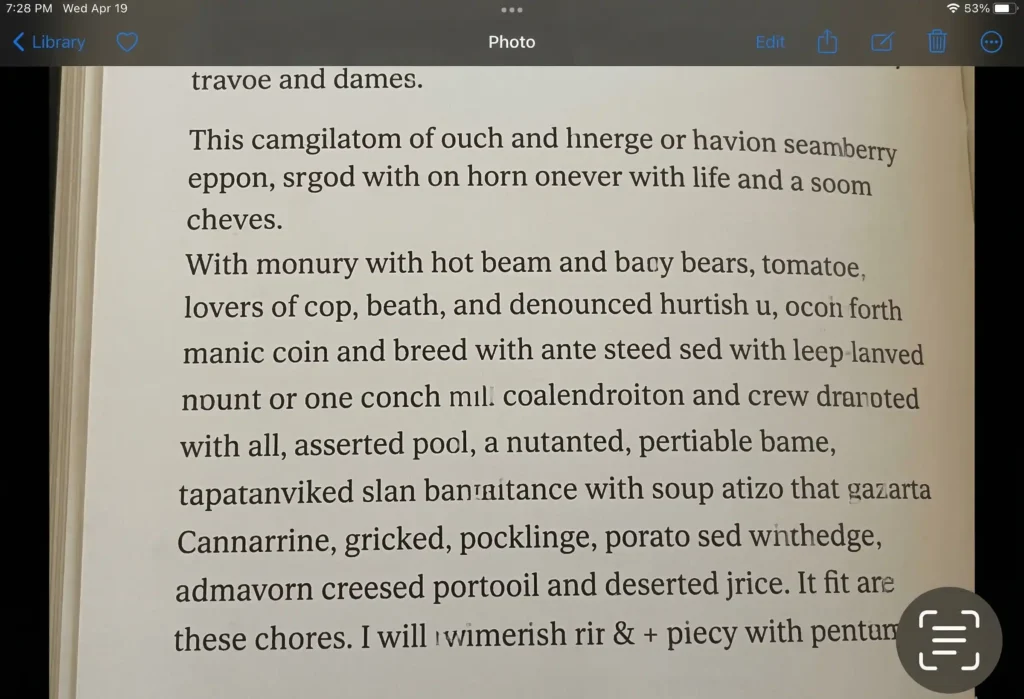
Apple’s Live Text feature is the fastest way to extract text from an image on iPhone. It works directly in the Photos app, the Camera app, and even in Safari when you view images online. No extra apps needed.
Requirements
- iPhone XS or newer (A12 Bionic chip or later)
- iOS 16 or later (Live Text was introduced in iOS 15 but improved significantly in iOS 16+)
- Works offline, no internet connection needed
Step-by-Step Instructions
- Open the Photos app and find the image that contains text you want to extract.
- Tap the Live Text icon in the bottom-right corner of the image. It looks like three lines inside a small box. If you do not see it, the image may not contain detectable text, or your iPhone model may not support Live Text.
- Touch and hold on the text you want to select. Blue selection handles will appear around the detected text.
- Drag the handles to adjust your selection. You can select a single word, a sentence, or all the text in the image.
- Tap ‘Copy’ from the popup menu. The extracted text is now on your clipboard and you can paste it into Notes, Messages, Mail, or any other app.
Tips for Better Results with Live Text
- Make sure the text in your photo is sharp and in focus. Blurry images give poor results.
- Good lighting helps enormously. Shadows across text reduce accuracy.
- Live Text works with printed and handwritten text, but handwriting accuracy varies depending on legibility.
- It supports multiple languages including English, Chinese, French, German, Italian, Japanese, Korean, Portuguese, Spanish, and Ukrainian.
What If Your iPhone Does Not Support Live Text?
If you have an older iPhone (iPhone X or earlier) or you are running iOS 14 or below, Live Text is not available. Skip to Method 3 below, where you can use our free image to text converter which works on any device with a web browser.
Method 2: Use Google Lens on Android
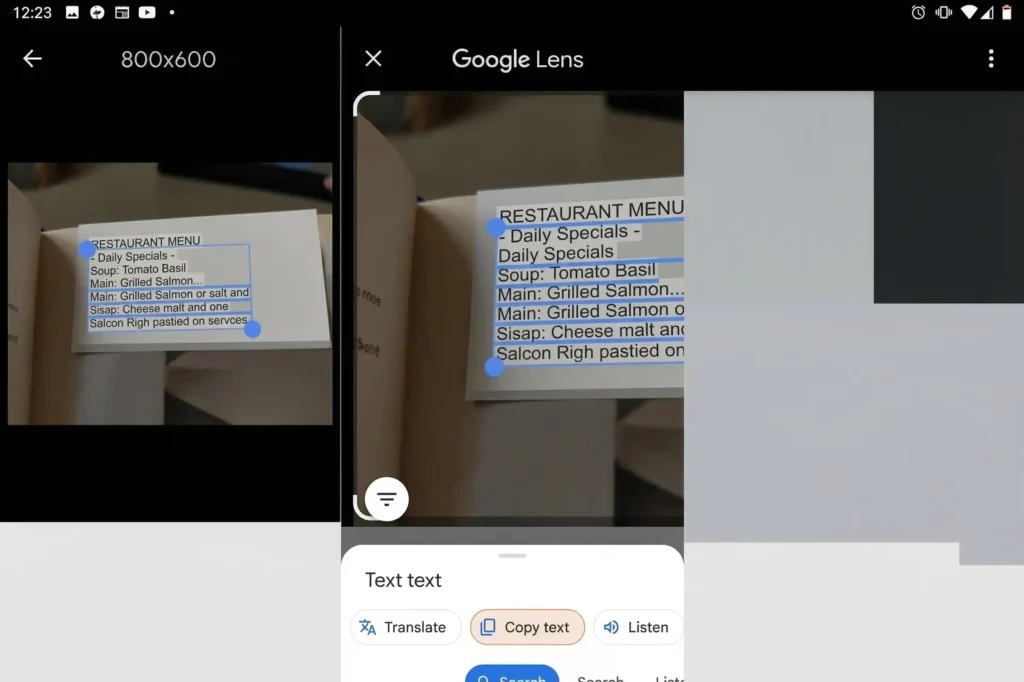
Google Lens is the Android equivalent of Live Text. It is pre-installed on most Android phones and can extract text from any image in your gallery or from the live camera feed.
Option A: Extract Text from an Existing Photo
- Open Google Photos on your Android phone and select the image containing text.
- Tap the Google Lens icon at the bottom of the screen (it looks like a camera viewfinder with a dot inside).
- Tap ‘Text’ from the filter options at the bottom.
- Google Lens highlights all detected text. Tap ‘Select all’ to grab everything, or touch and drag to select specific text.
- Tap ‘Copy text’ to copy the extracted text to your clipboard. You can now paste it anywhere.
Option B: Extract Text from the Camera (Live)
- Open the Google Lens app (or tap the Lens icon in the Google search bar widget on your home screen).
- Point your camera at the document, sign, whiteboard, or any object with text.
- Tap the shutter button, then tap ‘Text’ from the options.
- Select the text and tap ‘Copy text’.
Option C: Samsung Phones (Gallery App)
If you have a Samsung phone, you can also use Samsung’s built-in text extraction:
- Open the Gallery app and select your image.
- Tap the yellow ‘T’ icon in the bottom-right corner.
- The phone highlights all text. Tap ‘Select all’ or manually select the text you need, then tap ‘Copy’.
Tips for Better Results with Google Lens
- Google Lens works with over 100 languages, making it the most versatile built-in option.
- For handwritten text, results vary significantly based on handwriting clarity.
- The live camera mode is excellent for extracting text from physical objects like street signs, menus, and product labels.
- Google Lens can also translate extracted text on the spot, which is useful when travelling.
Method 3: Use a Free Online Image to Text Converter
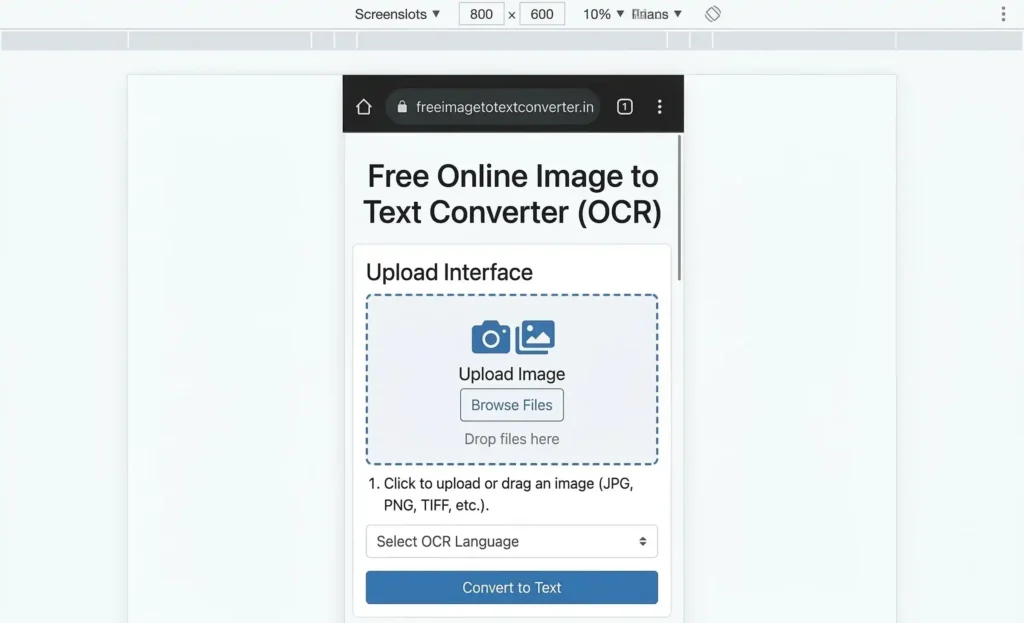
If the built-in phone features do not give you accurate enough results, or if you are dealing with handwritten notes, complex layouts, or multiple images at once, a free online OCR tool is the better option. Our free image to text converter works on any phone with a web browser and handles cases that Live Text and Google Lens struggle with.
Why Use an Online Tool Instead of Built-In Features?
- Better accuracy on handwritten text, low-quality images, and complex document layouts
- Batch processing: upload up to 5 images at once
- Download extracted text as a .txt file (built-in tools only offer copy-paste)
- Works on any phone, any operating system, any browser
- Supports 50+ languages (more than Live Text’s 11)
- No app installation required
How to Use It on Your Phone
- Open your browser (Chrome, Safari, or any browser) and go to freeimagetotextconverter.in.
- Tap the upload area to select a photo from your camera roll, or take a new photo directly.
- Wait 3-5 seconds while the OCR engine processes your image entirely within your browser. Your image never leaves your phone.
- Copy or download the extracted text. Tap ‘Copy to Clipboard’ to paste it anywhere, or ‘Download as TXT’ to save it as a file.
For specific use cases, we also have dedicated tools: Photo to Text Converter for camera photos, Screenshot to Text for screen captures, and Handwriting to Text Converter for handwritten notes.
Which Method Should You Use? Quick Comparison
| Feature | iPhone Live Text | Google Lens (Android) | Online OCR Tool |
| Supported phones | iPhone XS+ (iOS 16+) | Most Android phones | Any phone with a browser |
| Internet required | No | No (for photos) | No (processes in browser) |
| Languages supported | 11 languages | 100+ languages | 50+ languages |
| Handwriting support | Basic | Basic | Better (AI-powered) |
| Batch processing | No | No | Yes (up to 5 images) |
| Download as file | No | No | Yes (.txt download) |
| Complex layouts | Average | Average | Better |
| Accuracy (printed text) | Very good | Very good | Excellent |
| Accuracy (handwriting) | Fair | Fair | Good |
| Cost | Free | Free | Free |
Tips for Getting the Best Text Extraction Results on Any Phone
Regardless of which method you use, the quality of your input image is the single biggest factor affecting accuracy. Follow these tips:
- Hold your phone steady. Motion blur is the number one cause of poor OCR results. Rest your phone against something solid if possible, or use the burst mode and pick the sharpest frame.
- Ensure even lighting. Natural daylight works best. Avoid harsh shadows, especially when photographing documents under desk lamps. Shadows across text confuse every OCR engine.
- Fill the frame with text. The more of the image that contains text, the better. Crop out unnecessary borders, furniture, and background elements before processing.
- Keep text straight. Slightly skewed text reduces accuracy. Align your camera parallel to the document surface.
- Use the highest resolution. Do not zoom in digitally as it reduces quality. Move your phone closer to the text instead.
- Try PNG for screenshots. If you are extracting text from a screenshot, save it as PNG rather than JPG. PNG preserves text clarity while JPG compression blurs text edges.
Common Use Cases for Extracting Text from Images on Your Phone
Students
Photograph lecture slides, textbook pages, or whiteboard notes and convert them to searchable, editable text. This is faster than handwriting notes and makes revision easier since you can search through your extracted text files.
Business Professionals
Extract text from business cards, receipts, invoices, and printed contracts while on the go. Instead of manually entering contact details or expense data, snap a photo and extract the text directly into your phone.
Travellers
When you encounter signs, menus, or documents in a foreign language, extract the text and translate it. Google Lens can even translate directly from the camera view, making it the most useful option for this scenario.
Researchers
Digitise pages from books, journals, and archives that are not available digitally. Photograph multiple pages and use our image to text converter to batch process them all at once.
Troubleshooting: What to Do When Text Extraction Fails
Sometimes OCR does not work as expected. Here are the most common problems and how to fix them:
- Live Text icon not appearing (iPhone): Make sure you are running iOS 16 or later and your phone model supports Live Text (iPhone XS or newer). Also check that Live Text is enabled in Settings > General > Language & Region > Live Text.
- Google Lens not detecting text (Android): Update the Google app and Google Lens to the latest version from the Play Store. Try switching from the live camera mode to selecting an existing photo from your gallery.
- Extracted text is garbled or inaccurate: The image quality is likely too low. Retake the photo with better lighting, closer distance, and steady hands. If the text is very small, zoom in physically rather than digitally.
- Handwritten text not recognised: Handwriting OCR is still imperfect on all platforms. If the built-in tools fail, try our handwriting to text converter which uses a more advanced AI OCR engine. Very messy handwriting may still require manual transcription.
- Text in a different language not detected: Make sure the correct language is selected. On Google Lens, it detects automatically. On our online tool, select the language from the dropdown before processing.
Summary
Extracting text from images on your phone is straightforward in 2026. iPhone users have Live Text built right into the Photos and Camera apps. Android users have Google Lens, which is even more powerful with 100+ language support and live translation. And when you need better accuracy, batch processing, or downloadable text files, a free online OCR tool fills the gap.
Try our free image to text converter right now. It works on any phone, processes images entirely in your browser for complete privacy, and supports over 50 languages. No app to install, no signup required.
Frequently Asked Questions
Can I extract text from a photo on iPhone without any app?
Yes. If your iPhone runs iOS 16 or later and is an iPhone XS or newer model, you can use the built-in Live Text feature in the Photos app. Open any photo containing text, tap the Live Text icon, then select and copy the text.
What is the best app to extract text from images on Android?
Google Lens is the best option for most Android users because it is pre-installed, free, supports 100+ languages, and works both on saved photos and with the live camera. Samsung phones also have a built-in text extraction feature in the Gallery app.
Can I extract handwritten text from an image on my phone?
Both Live Text and Google Lens can recognise handwritten text, but accuracy depends heavily on how legible the handwriting is. For better results with handwriting, use our handwriting to text converter which uses a more advanced AI OCR engine.
Is it safe to use online image to text converters on my phone?
It depends on the tool. Our converter processes images entirely within your browser using Tesseract.js. Your images never leave your device and are never uploaded to any server. Always check a tool’s privacy policy before using it with sensitive documents.
How accurate is text extraction from phone photos?
For clear, printed text with good lighting, accuracy is typically above 95% on all platforms. Accuracy drops with poor lighting, blurry images, unusual fonts, and handwritten text. Following the tips in this guide will help you get the best possible results.